

Use Casii MCP in ZCode
Create an MCP server on the Plugins page of ZCode settings, paste one JSON config and approve in your browser to connect Casii — no API key needed.
Prerequisites
- ZCode installed and signed in.
- A Casii account. On the first connection a Casii authorization page opens in your browser — sign in and approve; no API key to create or copy. You can disconnect anytime under Connected apps in the dashboard.
Setup steps
-
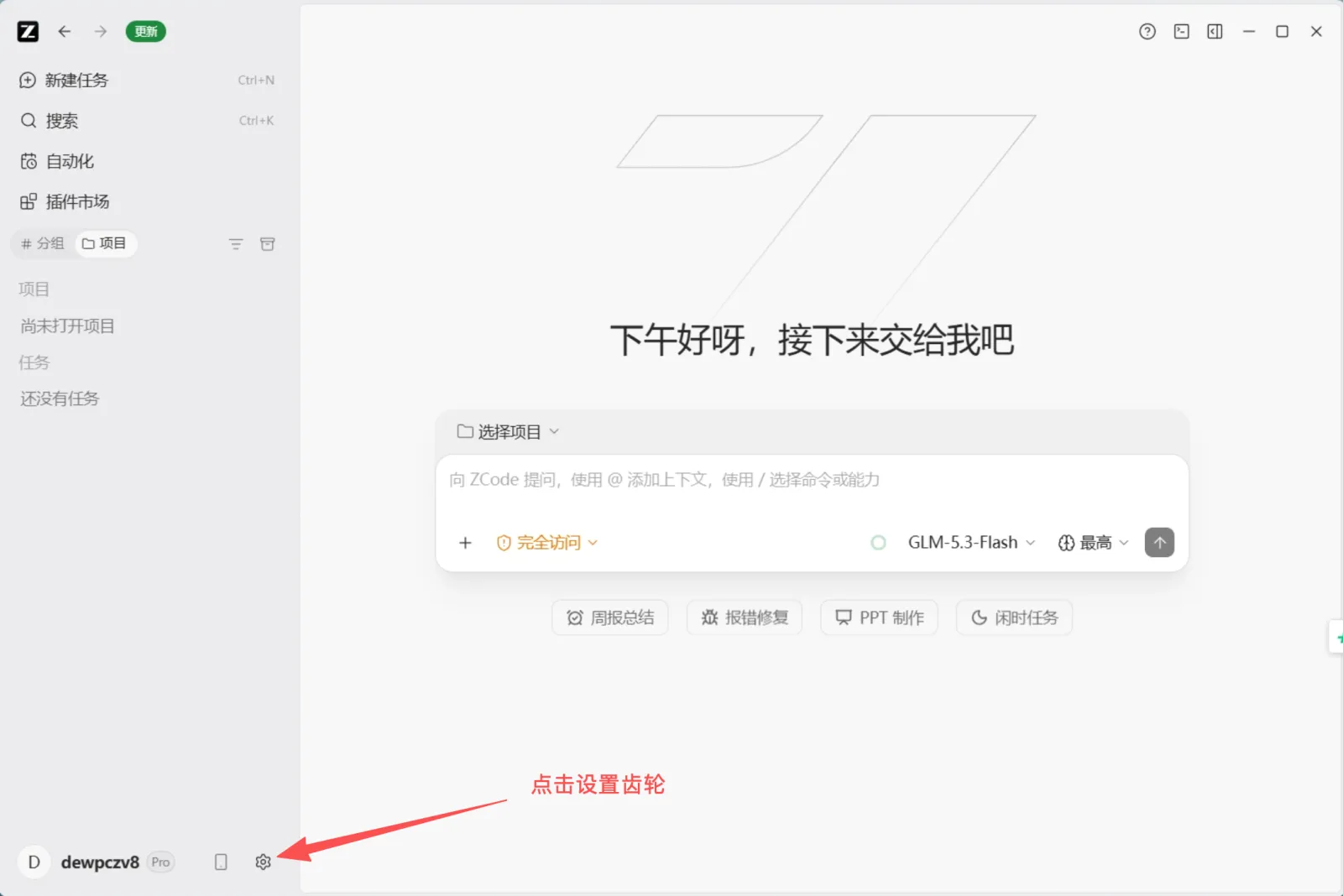
Open ZCode and click the settings gear in the bottom-left corner.
-
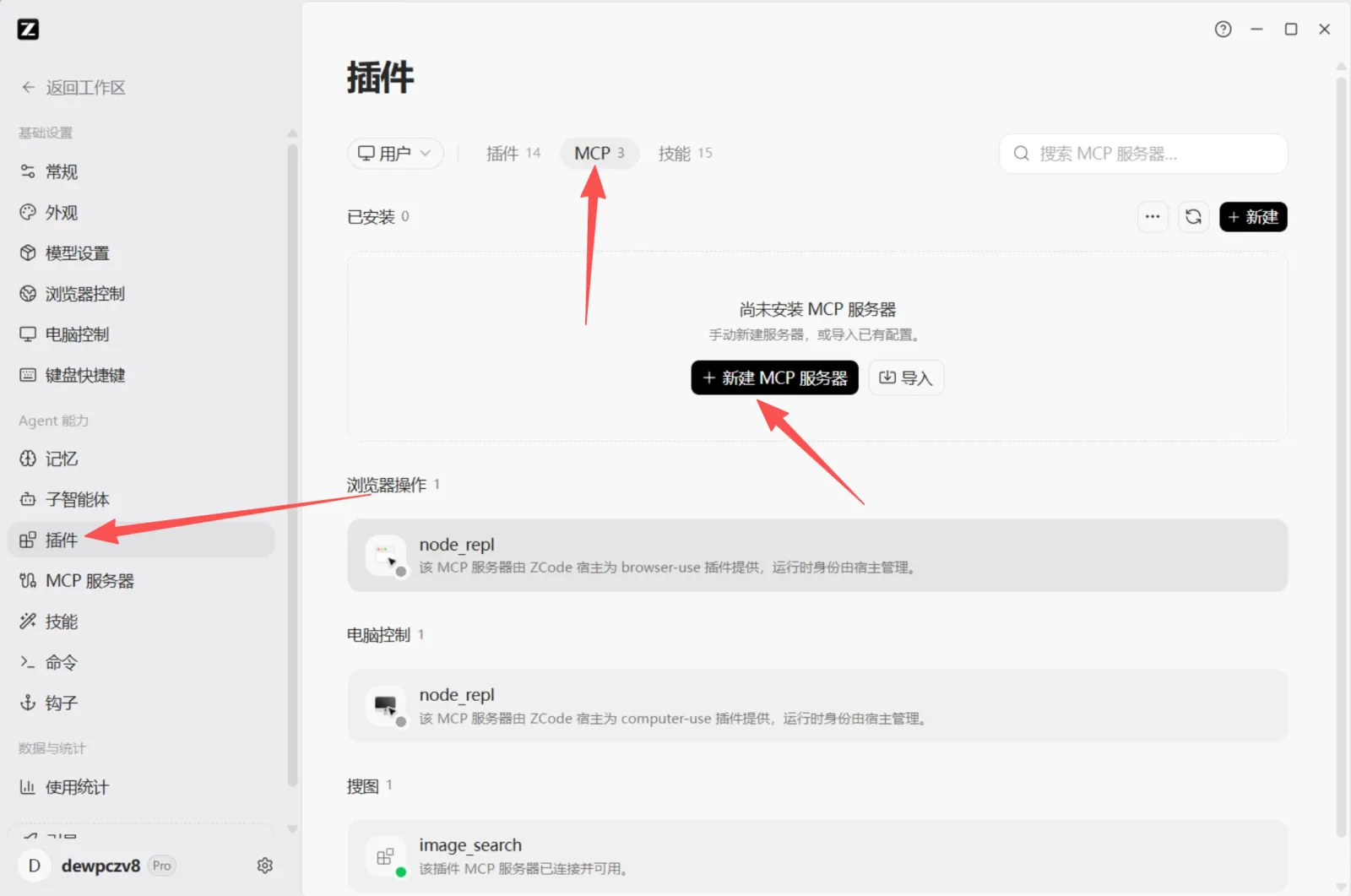
Click "Plugins" in the settings sidebar, switch to the "MCP" tab at the top and click "+ New MCP server".
-
On the "New MCP server" page, switch to "JSON" in the top-right, keep the scope as "User", paste the JSON below into "Full configuration" and click "Save".
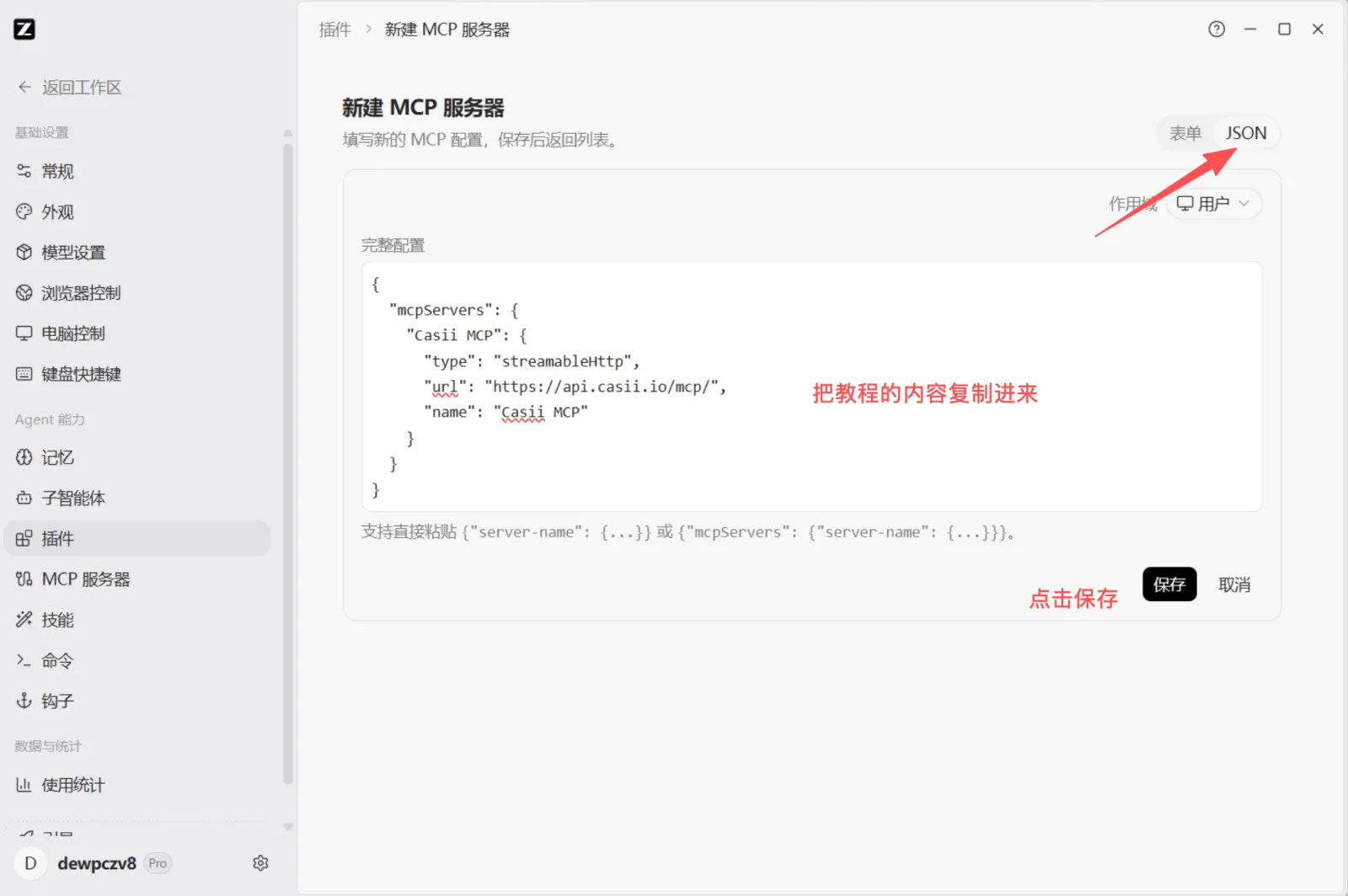
{ "mcpServers": { "Casii MCP": { "type": "streamableHttp", "url": "https://api.casii.io/mcp/", "name": "Casii MCP" } } } -
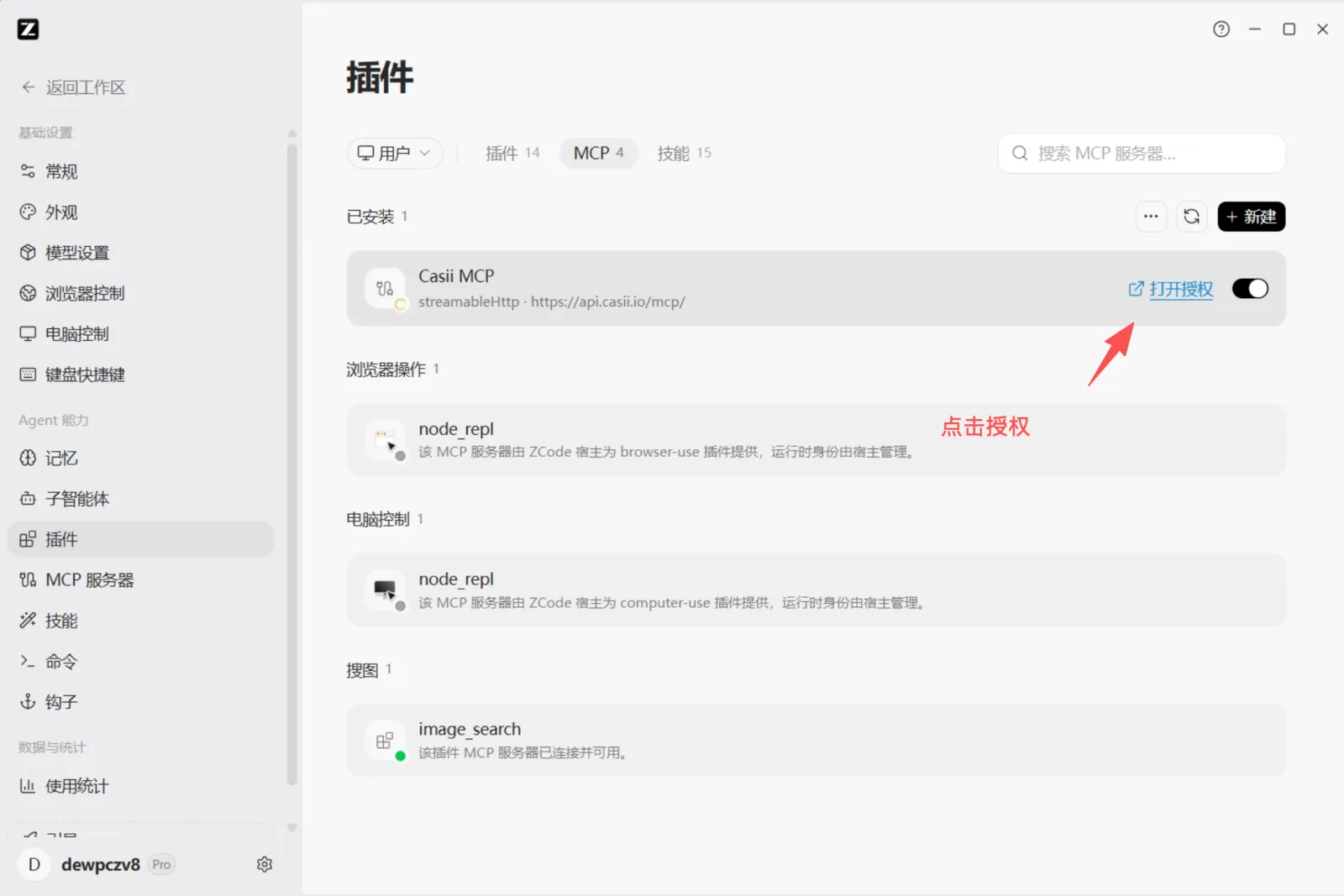
Back in the plugin list, "Open authorization" appears next to Casii MCP. Click it — a Casii authorization page opens in your browser; sign in to Casii and approve.
-
When the status dot on the Casii MCP icon turns green, you are connected.
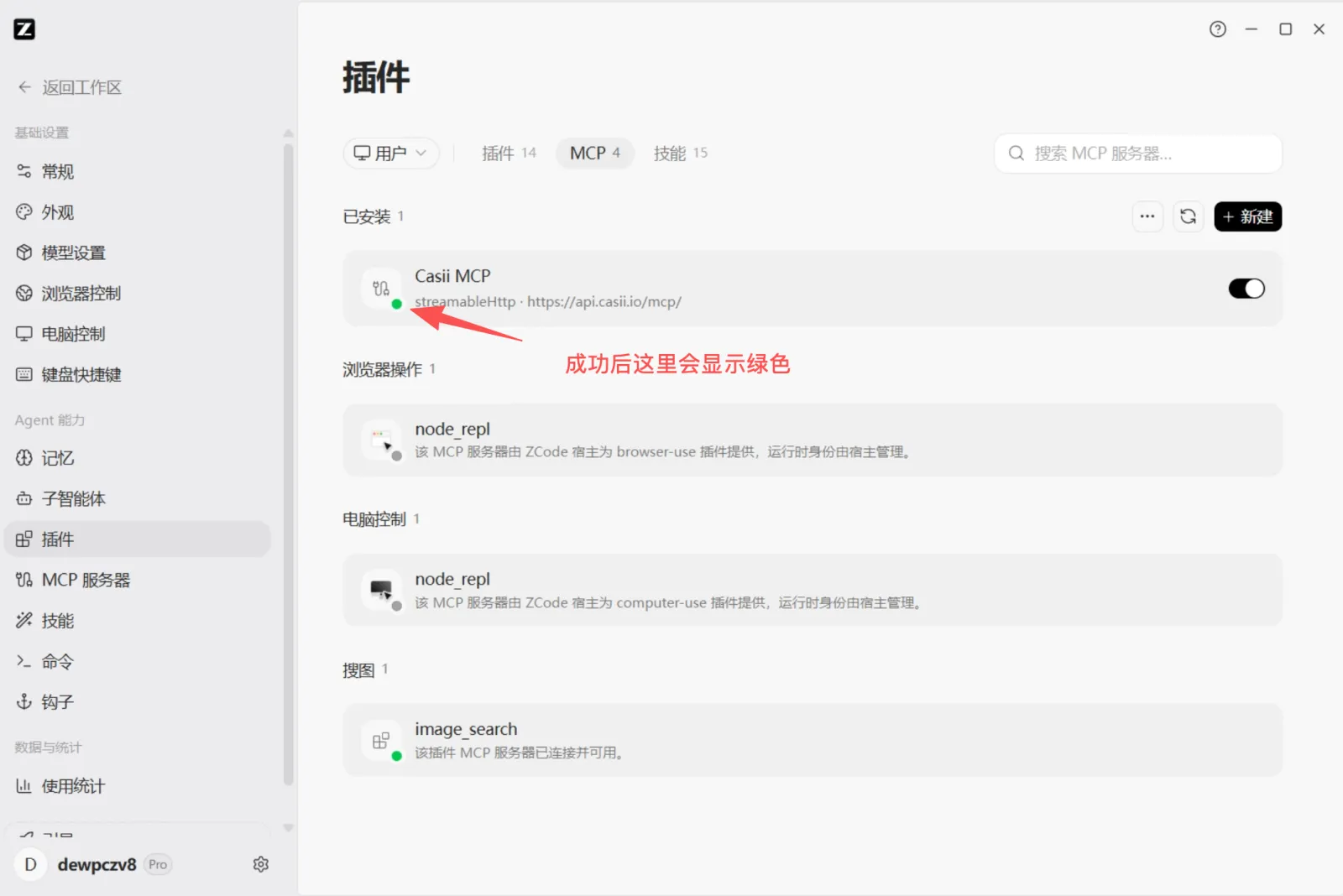
-
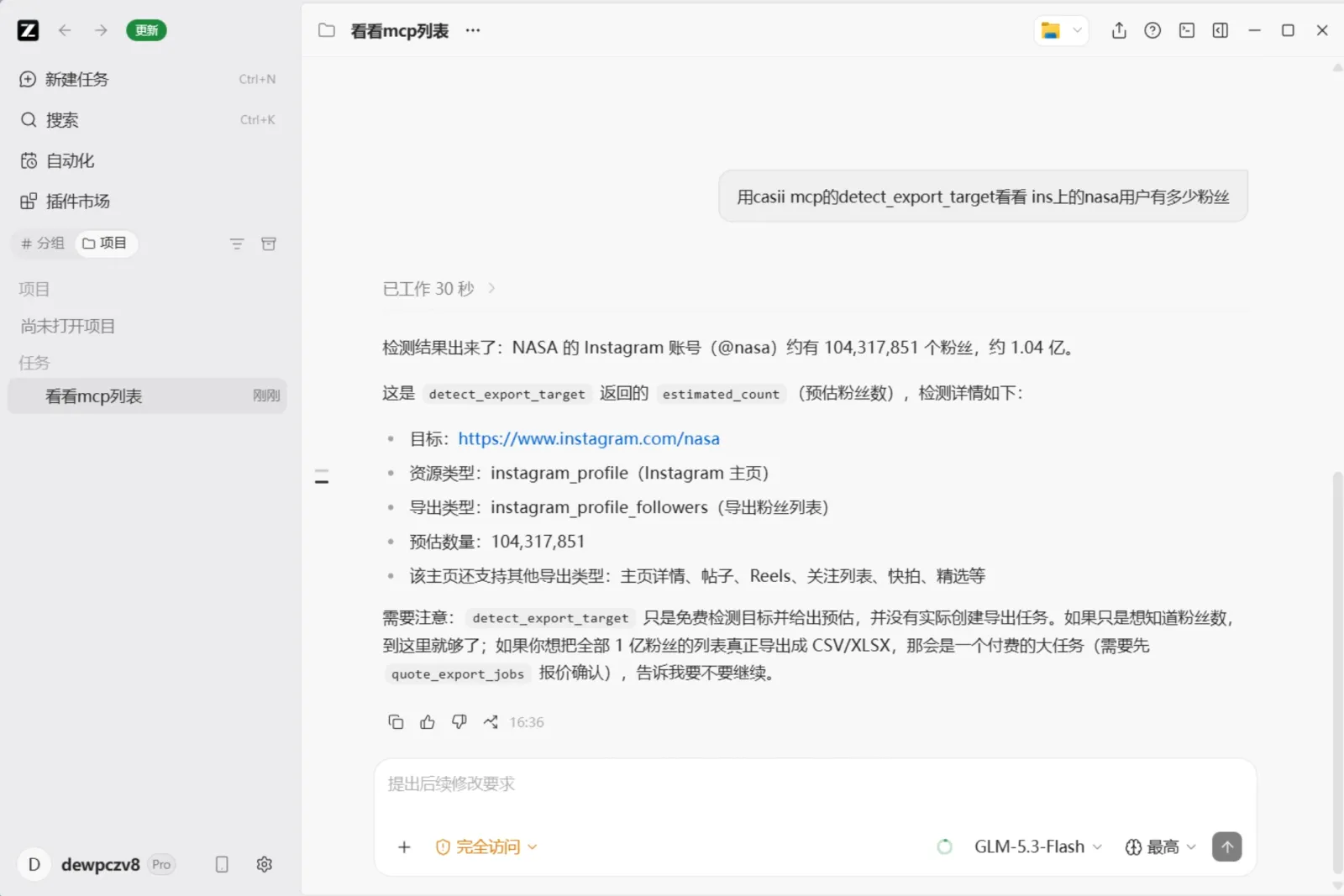
Click "Back to workspace", start a new task and ask for what you need in plain language (you can copy the example below). The AI calls Casii and returns the result.
Verify it works
Ask directly in ZCode, e.g.:
Use casii MCP’s detect_export_target to check how many followers the nasa account has on Instagram
The first call asks for tool permission; after that the AI handles detection, quoting and creation automatically. Creating and resuming must carry a stable idempotency key (idempotency_key, UUID format) generated once: retrying with the same key and the same parameters returns the original tasks and never charges twice; only changed parameters make it a new operation with a new key.