

Use Casii MCP in ChatGPT / Codex
The ChatGPT desktop app (ChatGPT Work) and Codex desktop share the same MCP settings and form. Follow these steps in either app to add the Casii MCP server.
Prerequisites
- ChatGPT / Codex installed and signed in.
- An API key created in the dashboard — the MCP URL is already filled into the quick reference below.
Connection quick reference
The quick reference already contains your MCP URL; just replace YOUR_API_KEY with your key, then paste into ChatGPT / Codex.
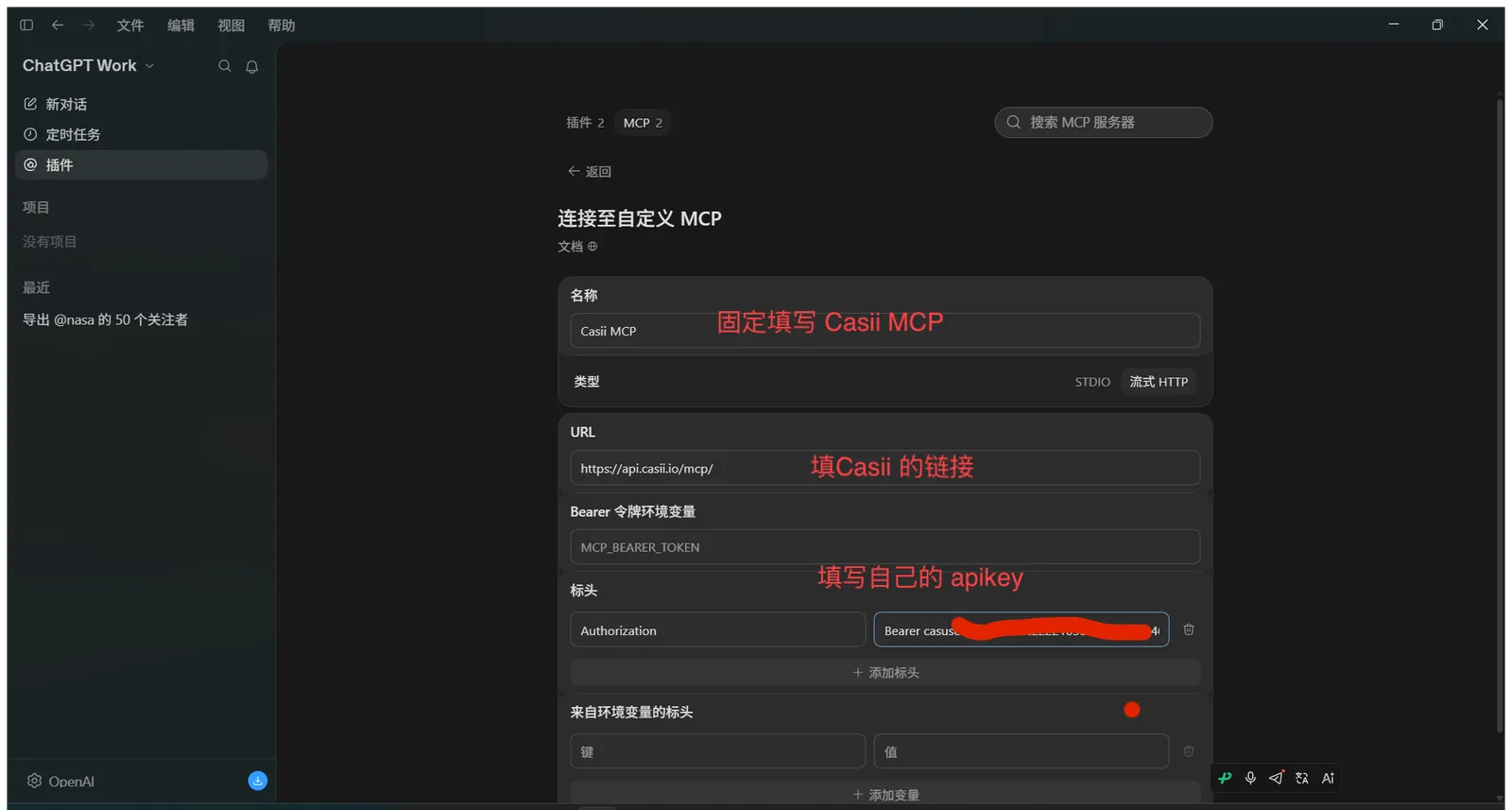
Name: Casii MCP
Type: Streamable HTTP
URL: https://api.casii.io/mcp/
Header: Authorization = Bearer YOUR_API_KEY
Keys in the screenshots are masked — use your own API key when you set things up.
Setup steps
-
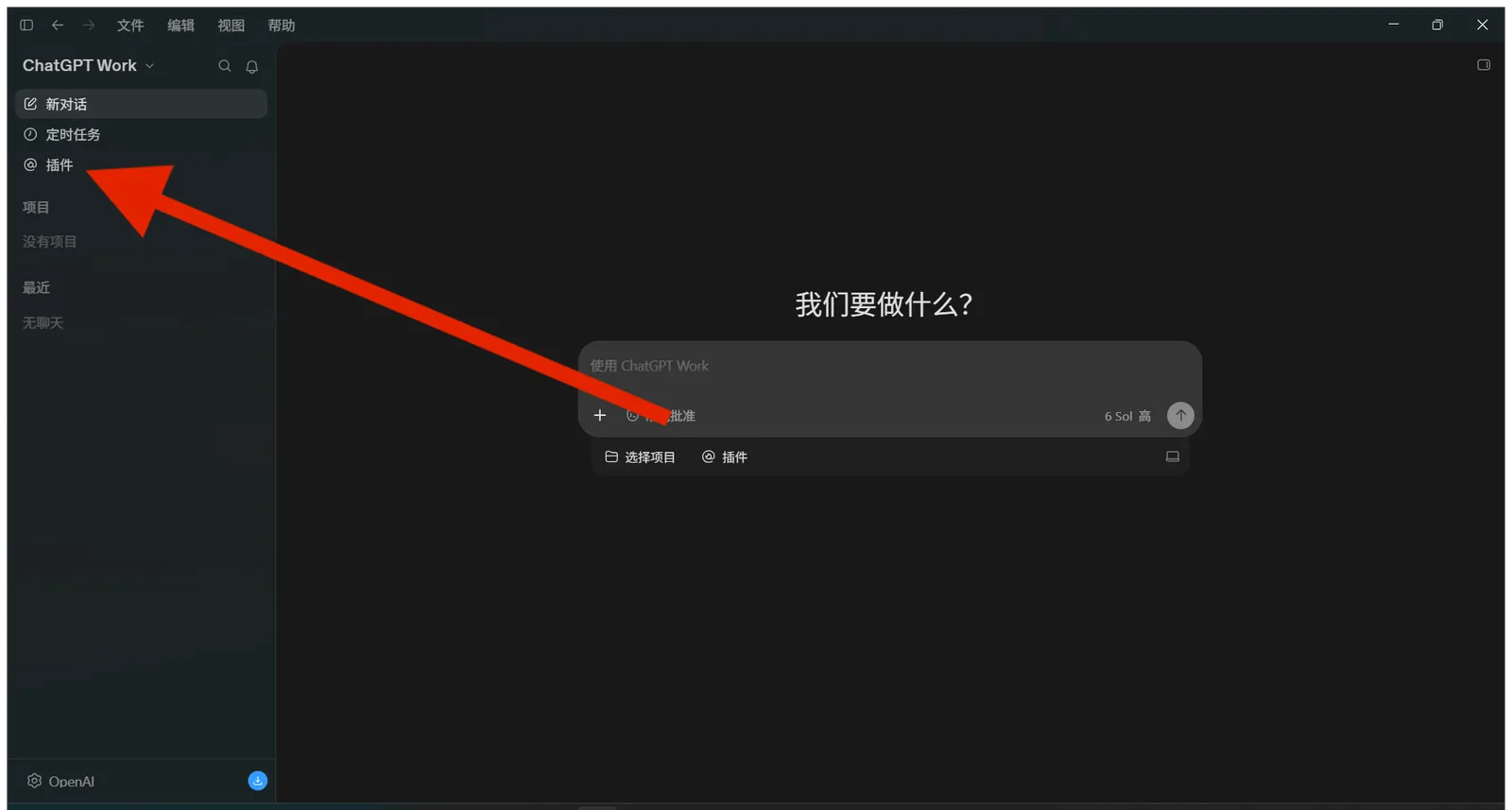
Open the ChatGPT desktop app (or Codex) and click "Plugins" in the left sidebar.
-
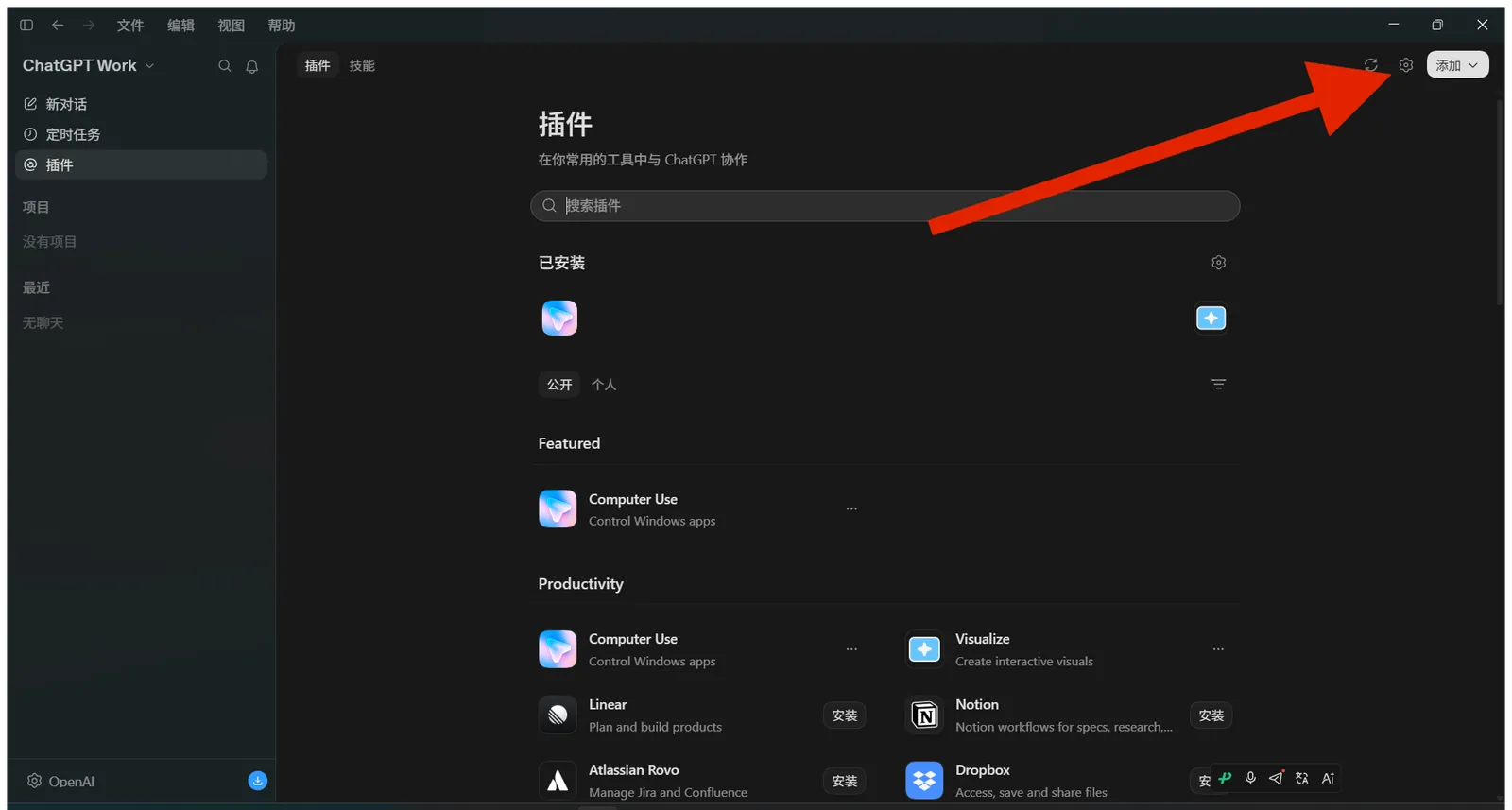
Click the gear icon next to "Add" in the top-right of the Plugins page to open plugin management (in Codex you can also go to Settings → Plugins).
-
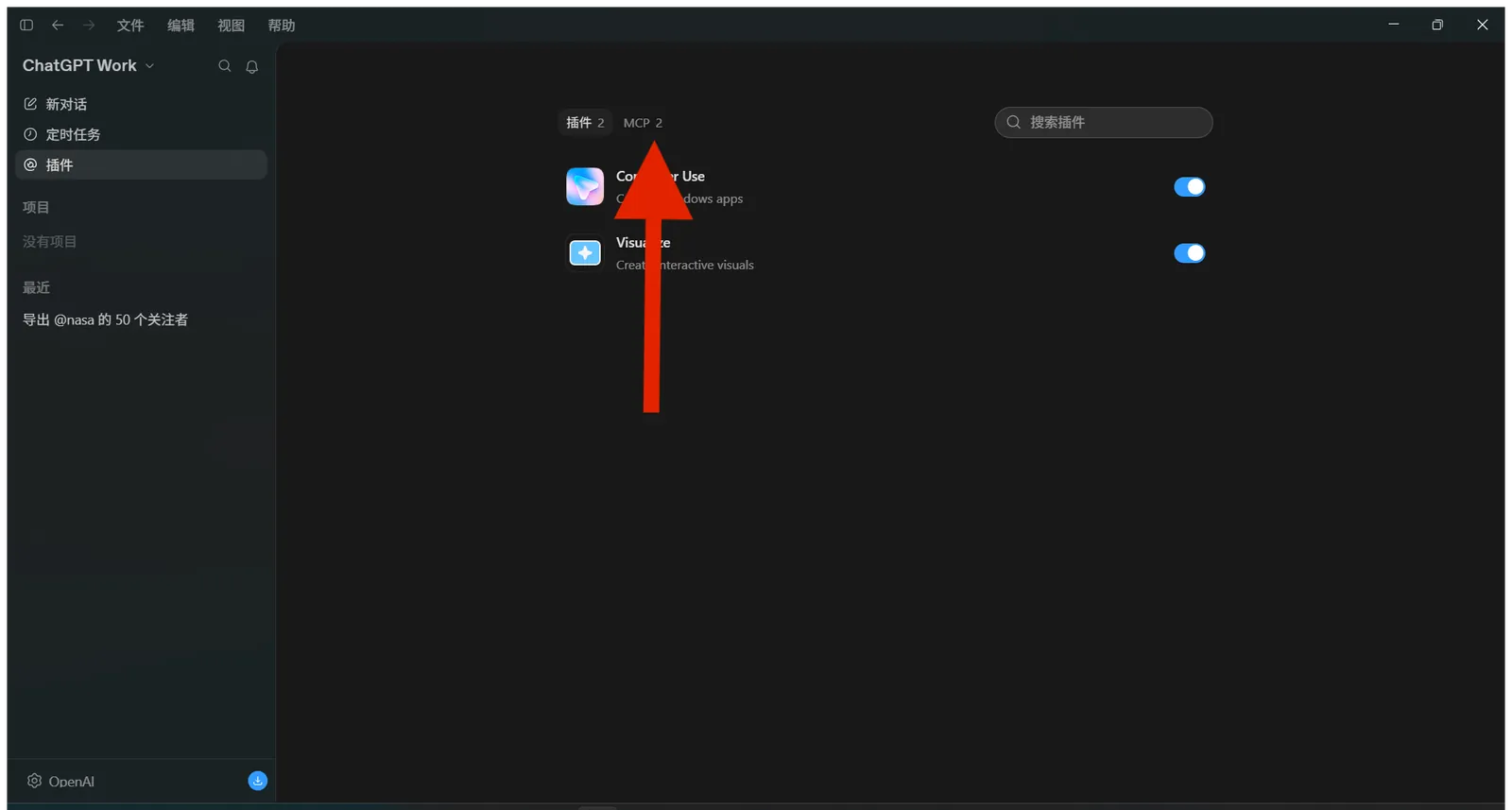
Switch to the "MCP" tab at the top of the page.
-
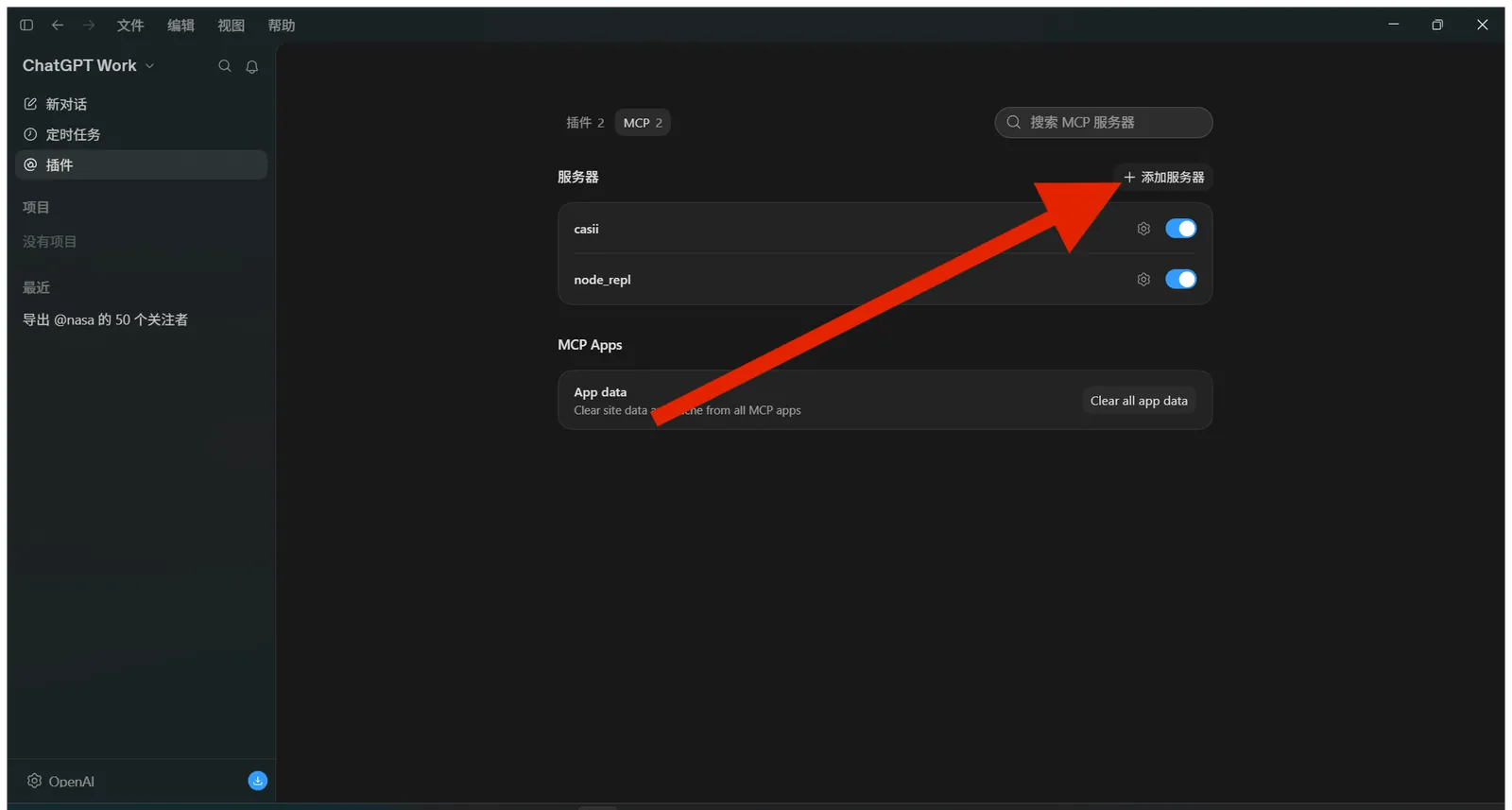
Click "+ Add server" next to "Servers".
-
On the "Connect to a custom MCP" page, set Name to Casii MCP, Type to "Streamable HTTP" and URL to your MCP URL. Under "Headers", enter Authorization on the left and Bearer YOUR_API_KEY on the right (one space after Bearer). Leave everything else empty, then scroll down and save.
-
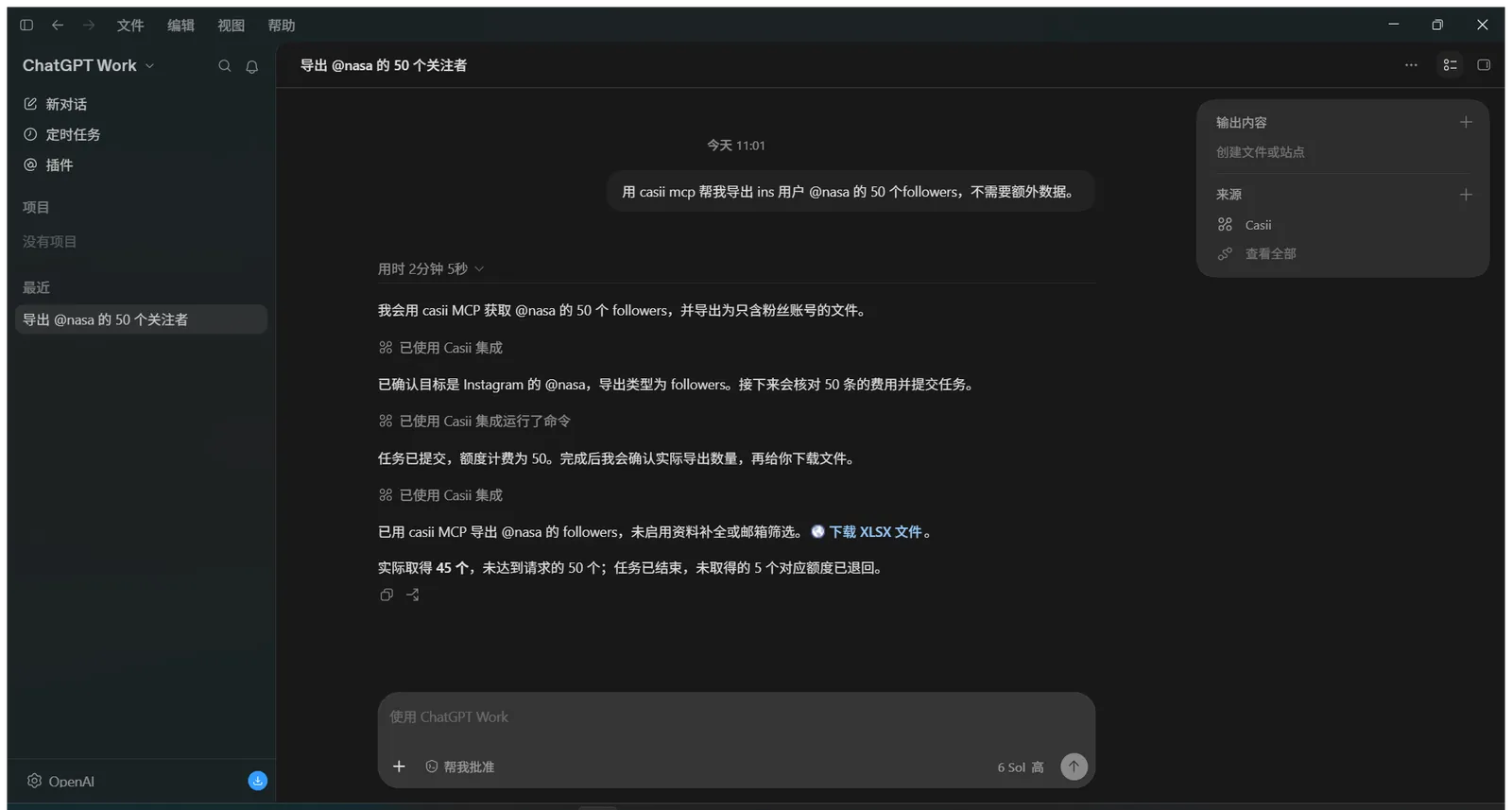
Click "New chat" and ask for your export in plain language. The AI calls Casii and returns a download link — click it to get the file.
Leave "Bearer token environment variable" and "Headers from environment variables" empty. The header value must start with "Bearer " (note the space).
Verify it works
Ask for an export directly in ChatGPT / Codex, e.g.:
Use casii MCP to export 50 followers of Instagram user @nasa for me; no extra data needed.
The first call asks for tool permission; after that the AI handles detection, quoting and creation automatically. Creating and resuming must carry a stable idempotency key (idempotency_key, UUID format) generated once: retrying with the same key and the same parameters returns the original tasks and never charges twice; only changed parameters make it a new operation with a new key.
No API key yet?
Create one on the dashboard API Keys page, then follow the steps above to connect.