

Use Casii MCP in Qwen
Work mode in the Qwen desktop app can manage MCP servers by itself: send it the install prompt below and the AI adds Casii, then opens your browser so you can approve access — no API key needed.
Prerequisites
- Qwen installed and signed in.
- A Casii account. On the first connection a Casii authorization page opens in your browser — sign in and approve; no API key to create or copy. You can disconnect anytime under Connected apps in the dashboard.
Setup steps
-
Open the Qwen desktop app, switch to Work mode, start a new task and send the install prompt below to the AI. It adds Casii to Qwen as instructed; along the way a Casii authorization page opens in your browser — sign in to Casii and approve.
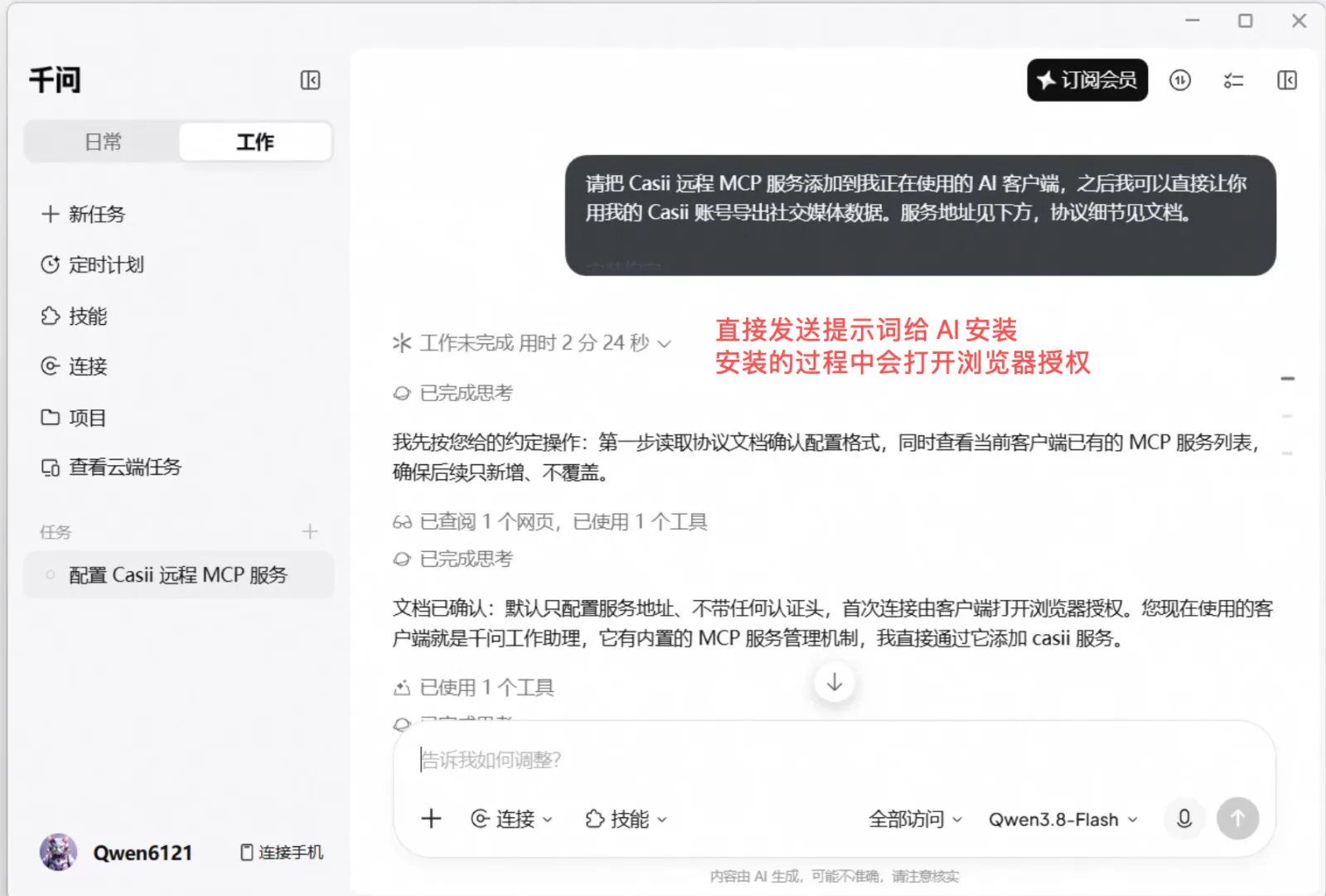
Add the Casii remote MCP server to the AI client you are running in (the current client), so I can later ask you to export social media data with my Casii account. The server URL is below; see the docs for the protocol. Setup rules: - If you cannot tell which client this is, ask me first. Follow that client’s official configuration format for remote Streamable HTTP servers, and name the server casii. - Merge into the existing configuration and leave all other servers unchanged. - Configure only the server URL. Do not add an Authorization header, API key or any other credential. - On the first connection the client will open a browser to the Casii authorization page, where I will sign in and approve access myself. - Verify the connection with tools/list and tell me if the client needs a restart. Do not create paid tasks during setup. - If the client does not support MCP authorization (no browser opens when connecting and requests keep returning 401), tell me instead of inventing another way to authenticate. Docs: https://casii.io/docs/mcp.json MCP URL (Streamable HTTP): https://api.casii.io/mcp/ -
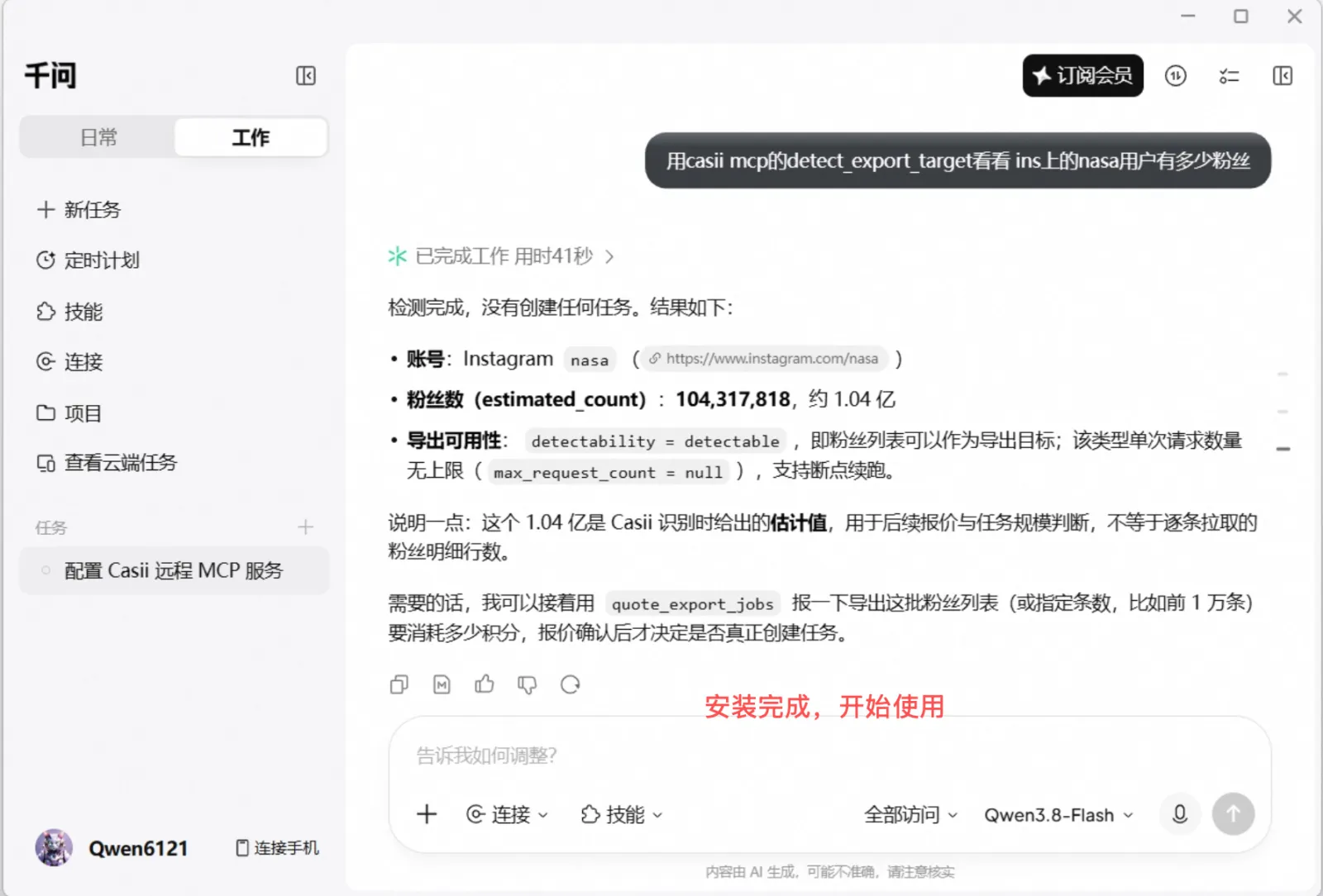
Once installed, ask for what you need in plain language (you can copy the example below). The AI calls Casii and returns the result.
You can also copy the same prompt on the Casii website: click "For AI" and switch to "MCP setup".
Verify it works
Ask directly in Qwen, e.g.:
Use casii MCP’s detect_export_target to check how many followers the nasa account has on Instagram
The first call asks for tool permission; after that the AI handles detection, quoting and creation automatically. Creating and resuming must carry a stable idempotency key (idempotency_key, UUID format) generated once: retrying with the same key and the same parameters returns the original tasks and never charges twice; only changed parameters make it a new operation with a new key.